
A cleaner
camera roll.
More memories.
Meet Pixtrim. Swipe through your photos, keep the moments you love, and make a little room for what’s next.
Your photos are processed on your device. You review what goes.
Your library, with
a little breathing room.
The extras add up. Pixtrim helps you turn a whole camera roll into smaller, more thoughtful decisions.


A few minutes.
A lighter library.
No need to sort years of memories at once. Pick a group you recognize and make one decision at a time.
Pick your starting point
A month, an album, some old screenshots. Keep it manageable.
Keep it or let it go
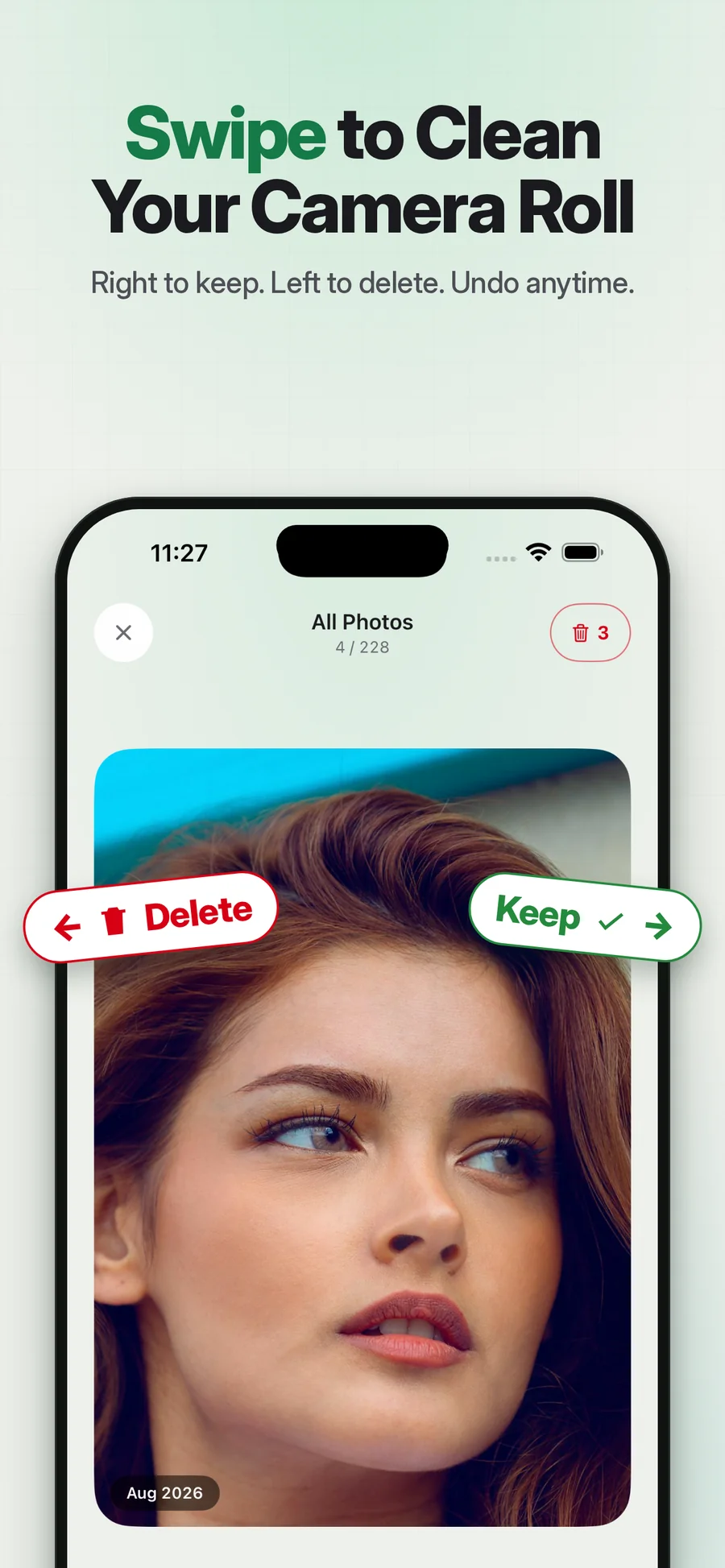
Swipe right to keep. Left to mark for deletion. Pause on the ones that matter.
Review before you finish
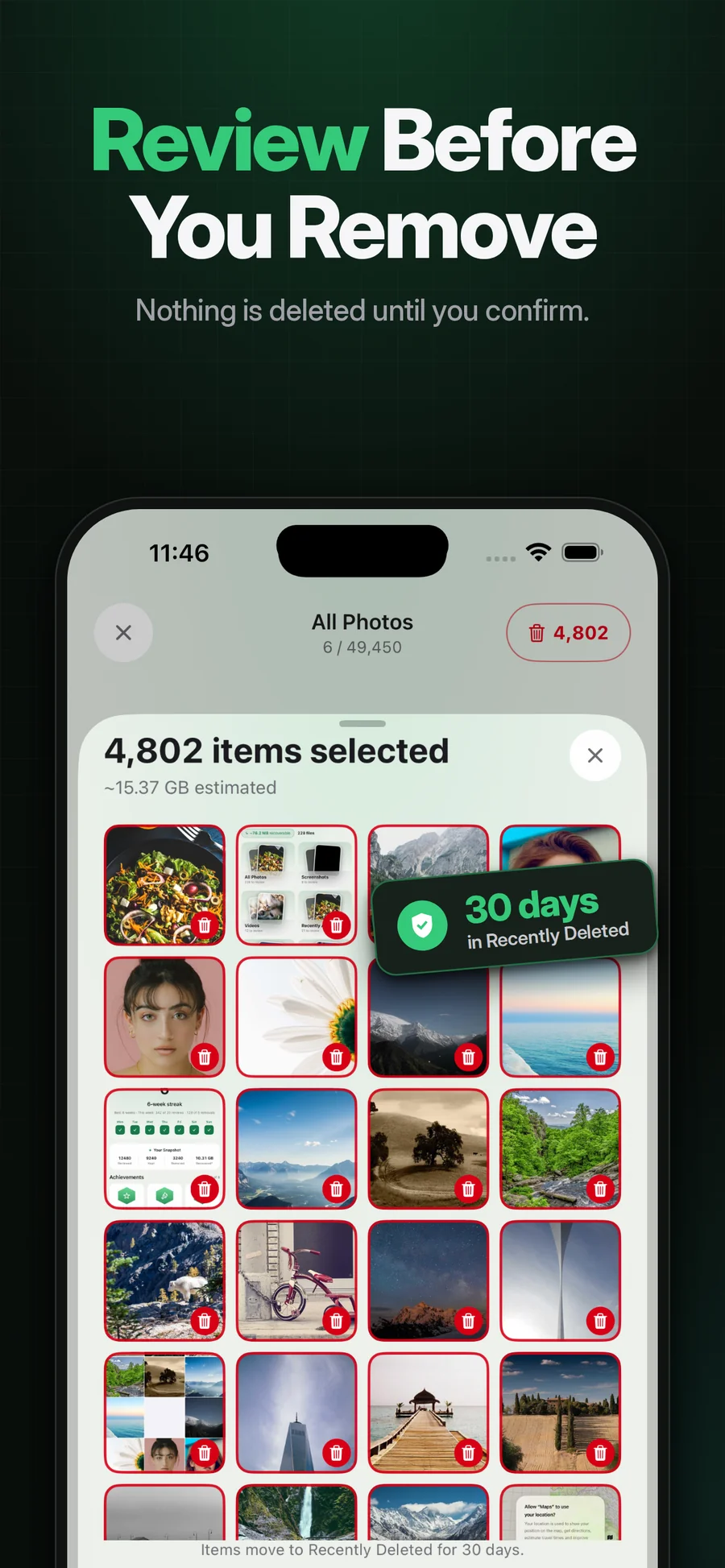
Take one last look at the selection, then confirm through iOS.
Your photos aren’t
just files.
They’re yours to choose. Pixtrim processes media on your device and asks you to review before deletion. Important originals deserve an independent backup, and iCloud synchronization still applies.
Good questions.
Practical answers.
How to delete screenshots on iPhone
Find screenshots in Photos, review them in batches and delete selected items. Learn how Pixtrim can help with an old screenshot backlog.
Read the guide
How to delete duplicate photos on iPhone
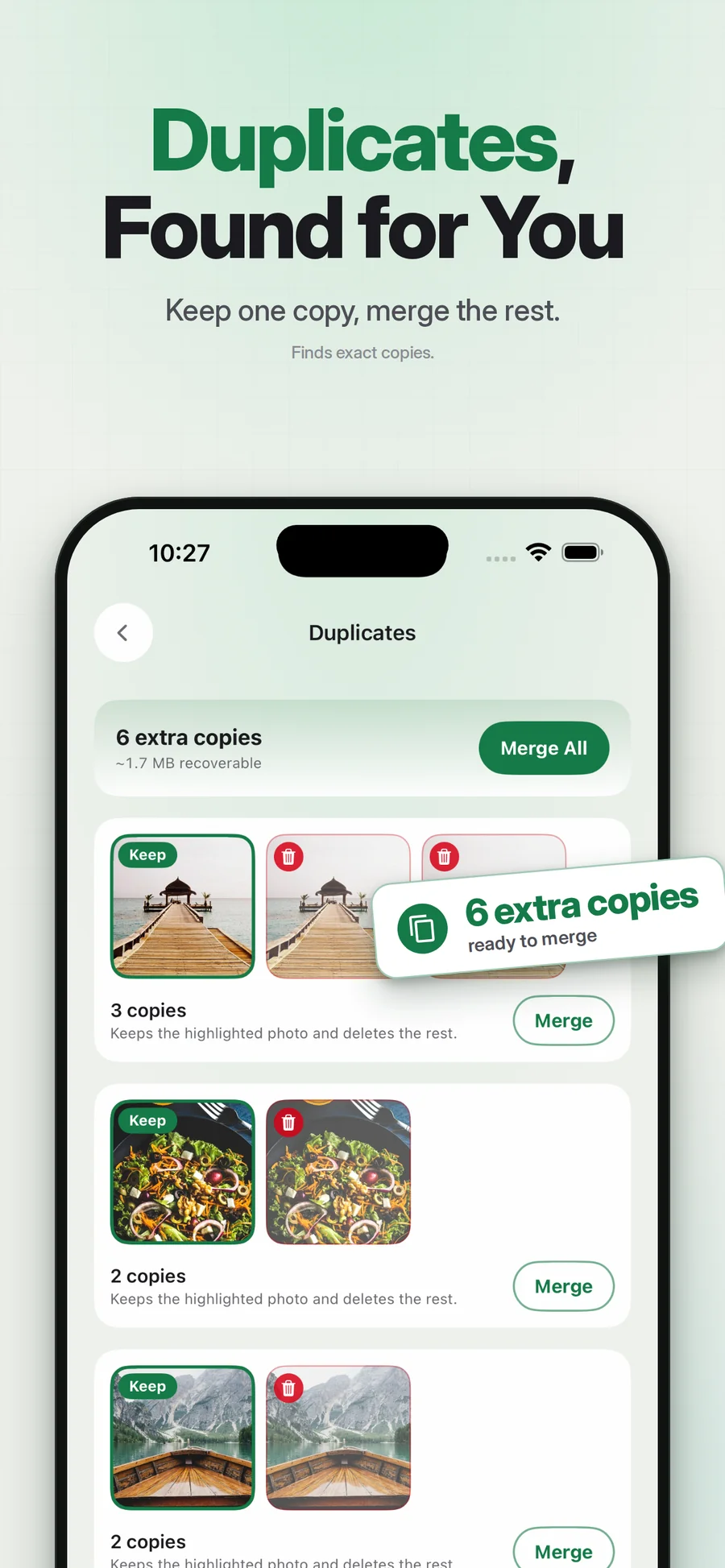
Use Apple’s Duplicates collection to review and merge detected photos, learn why the collection may be missing, and compare Pixtrim’s duplicate-cleanup workflow.
Read the guide
How to find and delete large videos on iPhone
Find storage-heavy iPhone videos, inspect file information, and review clips before deleting. Compare native Photos checks with Pixtrim’s large-video finder.
Read the guideLet’s clear
a few things up.
A good cleanup starts with knowing what the app does—and what it doesn’t.
More questions, answeredIs Pixtrim free?
Will my photos be uploaded?
What happens if I change my mind?
Does deleting affect iCloud Photos?
A cleaner or an organizer?
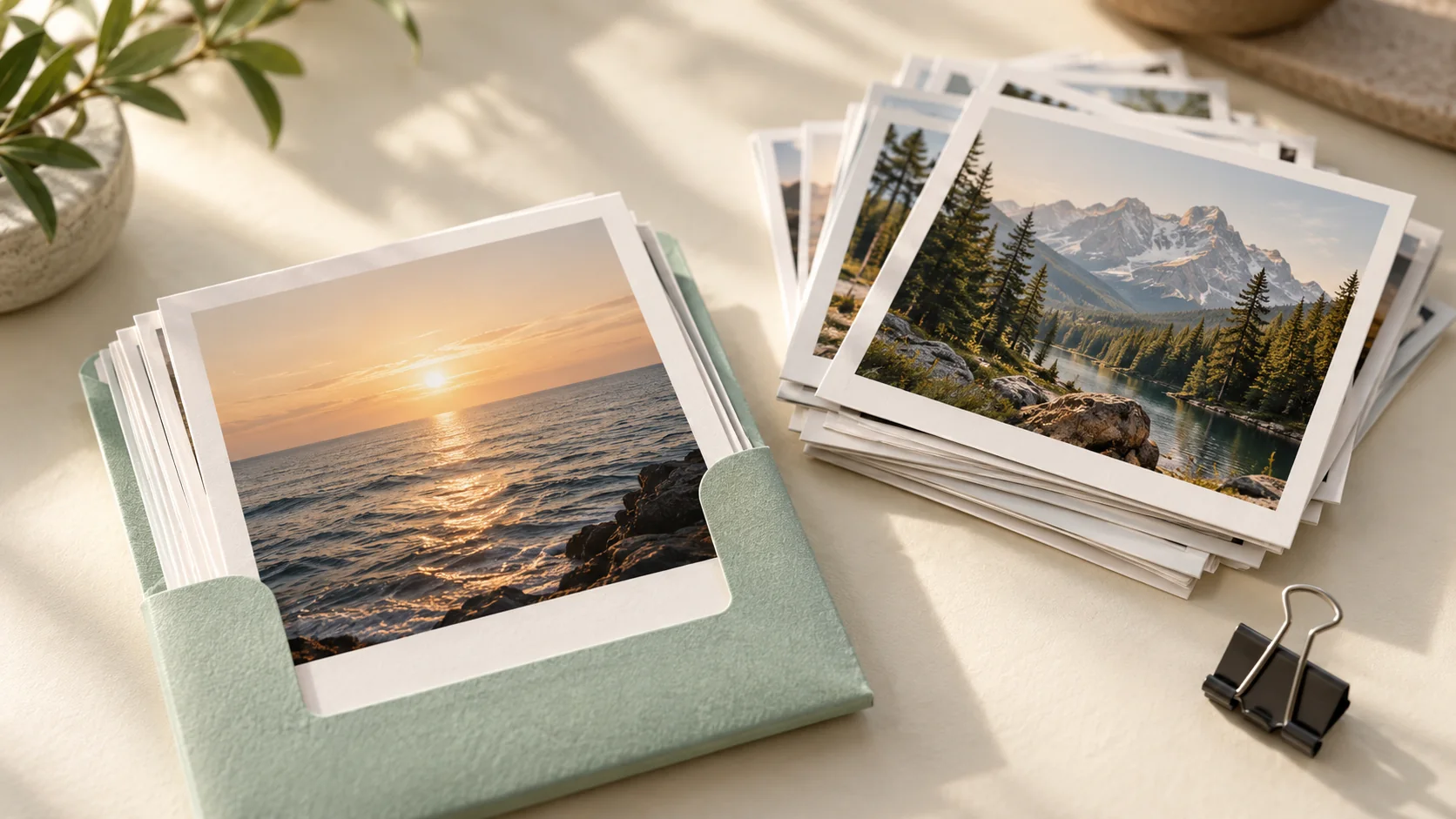
Keep what matters.
Choose what helps.
Swiping, album sorting, duplicates, storage. Start with the task you need done, then find the workflow that fits.
Read the blogA weekly camera-roll cleanup routine you can actually finish
Make photo cleanup a small weekly habit: choose one group, keep meaningful pictures, review the extras and finish without chasing an empty library.
Read the guideWhat photos should you delete first?
Choose a useful starting point for photo cleanup: temporary screenshots, accidental captures, repeated copies or unwanted recordings, with a careful keep rule.
Read the guideDuplicate photos and similar photos are different decisions
Learn why repeated copies and near-identical shots need different review, what Apple’s Duplicates collection does, and when manual comparison is useful.
Read the guideMake a little room for what matters.
Review your camera roll with Pixtrim. Keep the memories, clear the extras, and confirm before you delete.
Get Pixtrim for iPhoneiOS 17 or later · Free to download · In-app purchases